
Set up court bookings
This guide walks you through configuring online court bookings for your club on SliceWin. Once set up, your players can book courts directly from the app — and you can manage everything from your phone.
Time needed: ~15 minutes
You'll need: Your club created on SliceWin.
Before you start
Court booking on SliceWin works around two building blocks:
- Pricing schedules define your slot lengths, opening hours, and prices for a given weekday pattern
- Courts are the physical courts at your venue, each assigned to a pricing schedule
You'll create at least one of each. If different courts have different prices, you'll create multiple pricing schedules — one per pricing pattern.
Step 1 — Create your first pricing schedule
Pricing schedules control when players can book, for how long, and at what price.
How to get there: Open the SliceWin app → Select your club → Club settings → Booking System → Rate & Hours
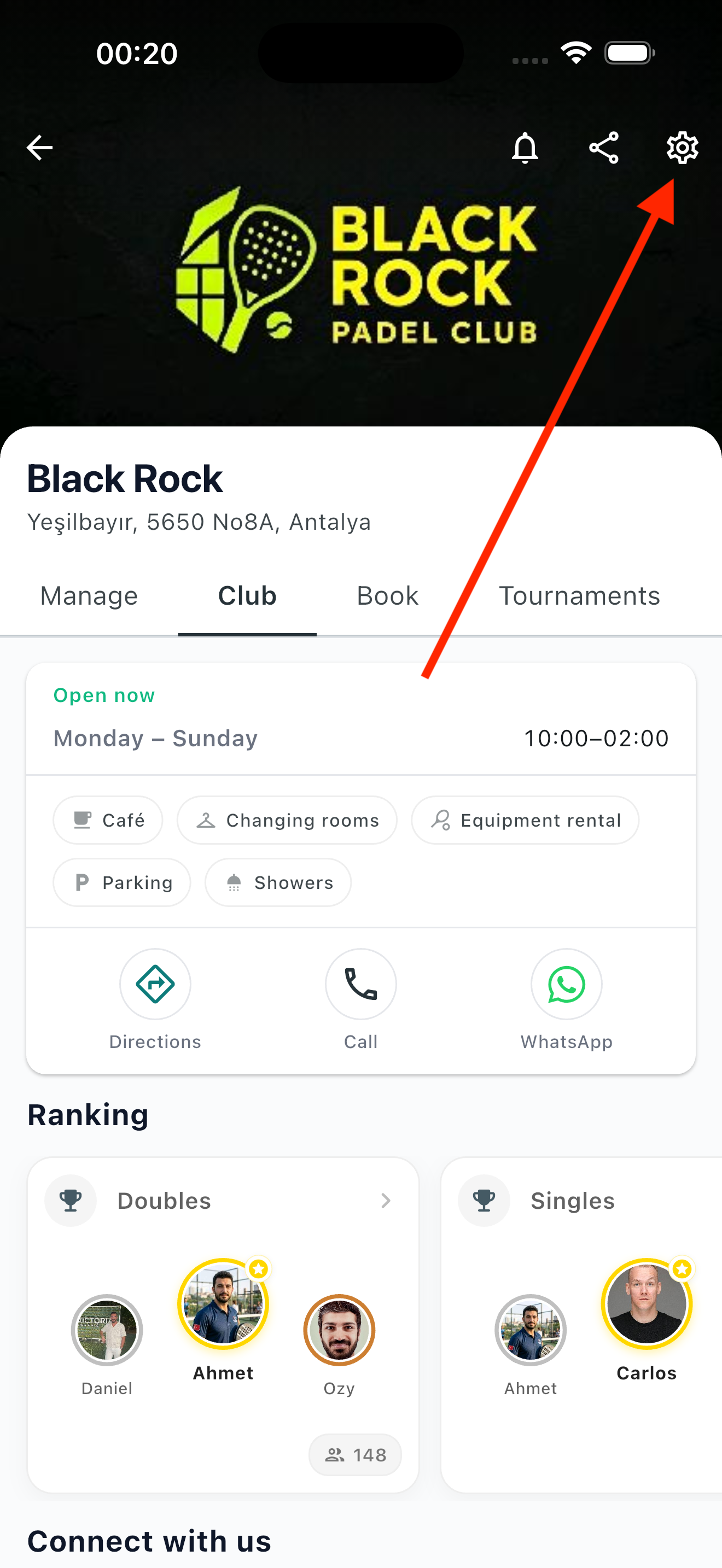
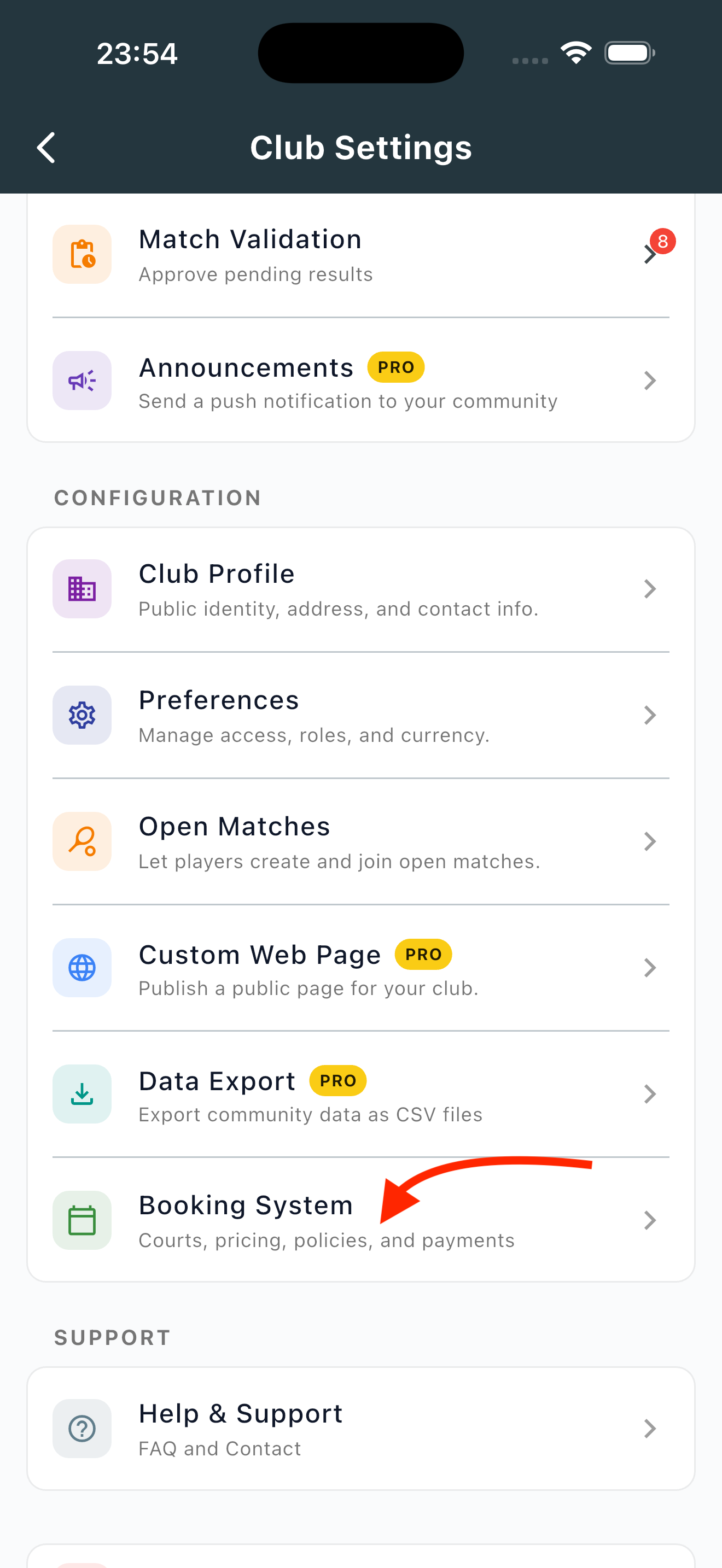
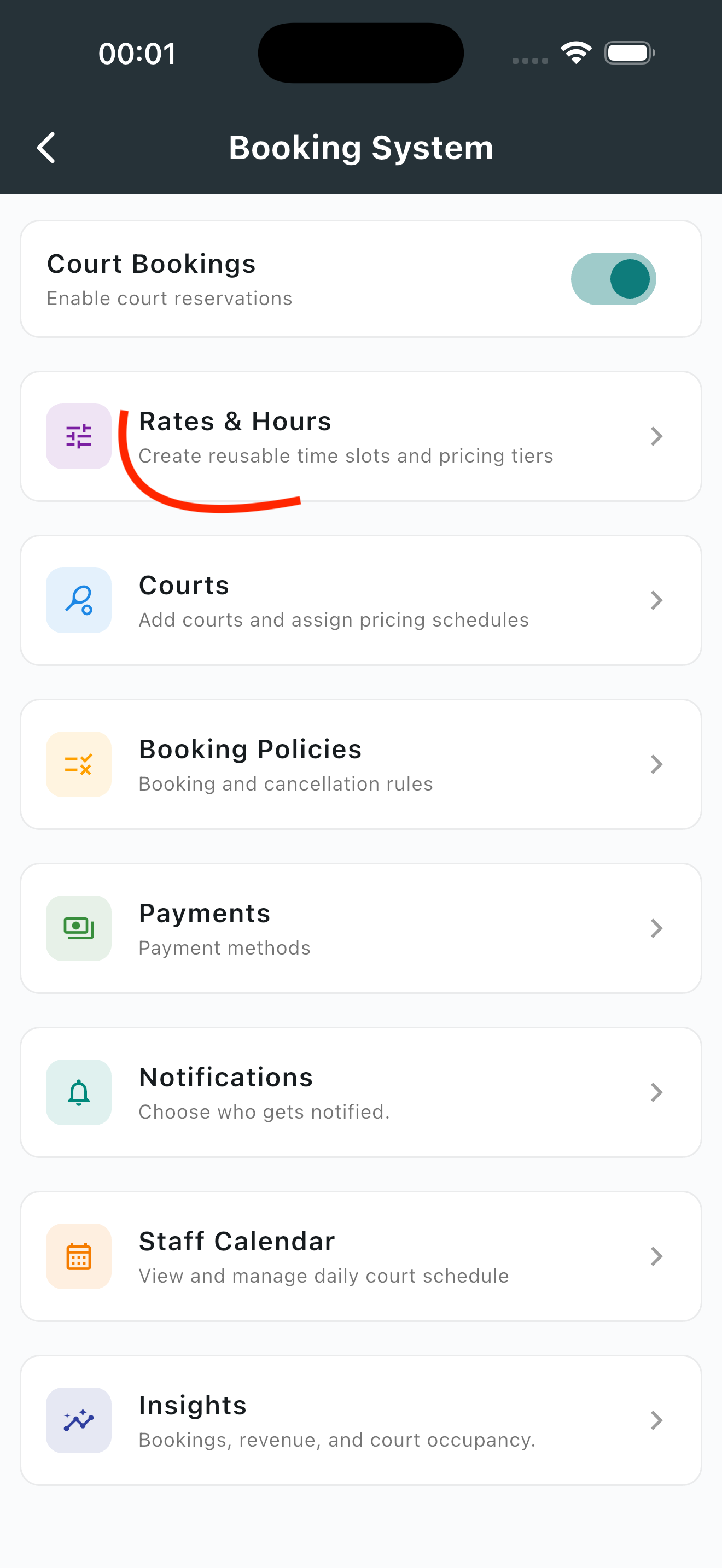
Tap Add pricing schedule to create your first one.
Note: The first time you set this up, SliceWin may ask you to confirm your currency and timezone before you can create your first pricing schedule. These apply to all of your bookings, so make sure they're correct.
Give your schedule a name — something short you'll recognize later, like "Standard" or "Weekday flex."
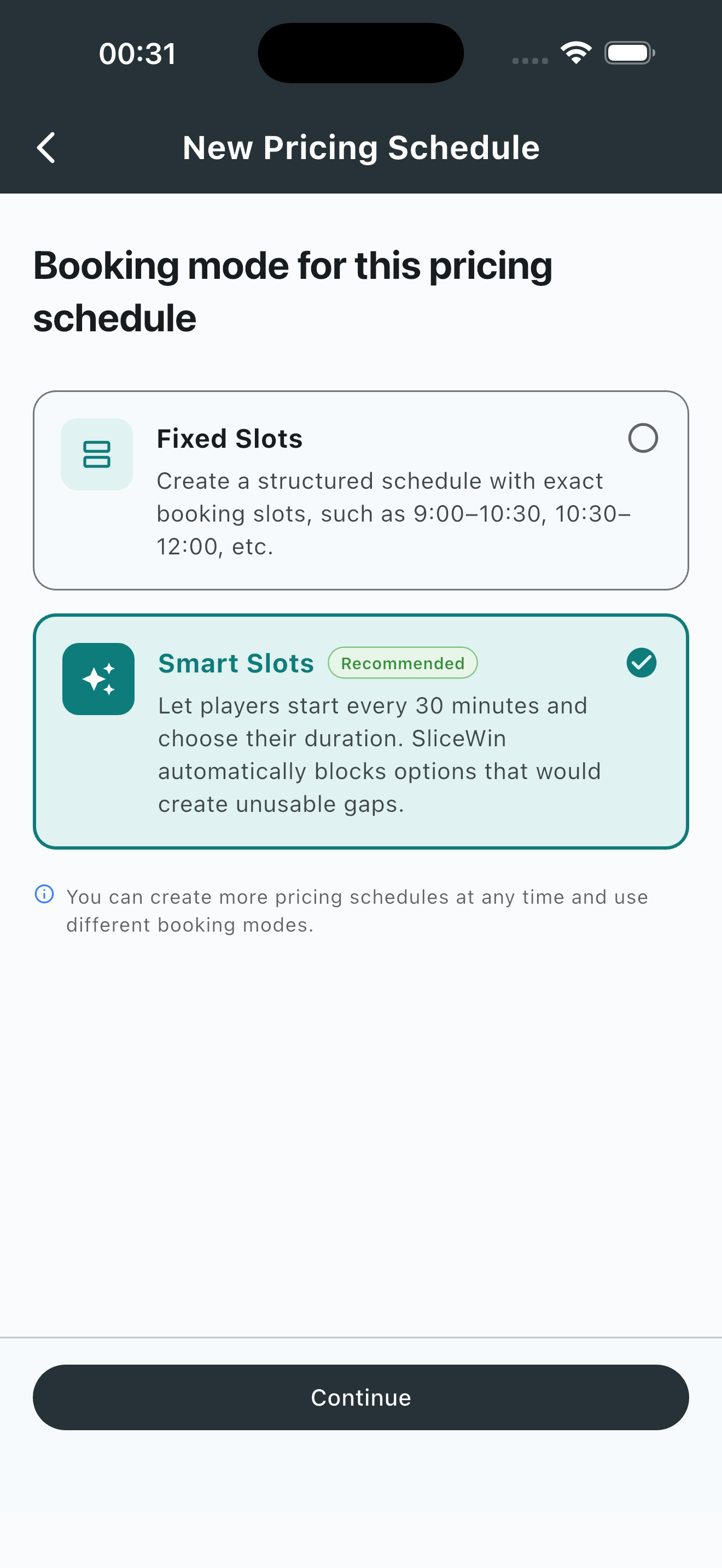
Choose your slot mode:
- Fixed Slots — best if your slots are always the same length (e.g. every court booking is exactly 90 minutes). Simplest to configure.
- Smart Slots — best if you want SliceWin to automatically fit different durations (60/90/120 min) into your day without leaving awkward gaps. More flexible.
Not sure which to pick? Start with Smart Slots. You can switch later.
Configure your slots and prices:
For each day of the week, set your opening hours and price per slot. You can copy a day's setup to other days to save time.
Tip: If your prices change by time of day (e.g. more expensive at prime time), split the day into multiple time ranges — each with its own price.
Save the schedule when you're done.
Step 2 — Create your courts
Now assign your pricing schedule to actual courts.
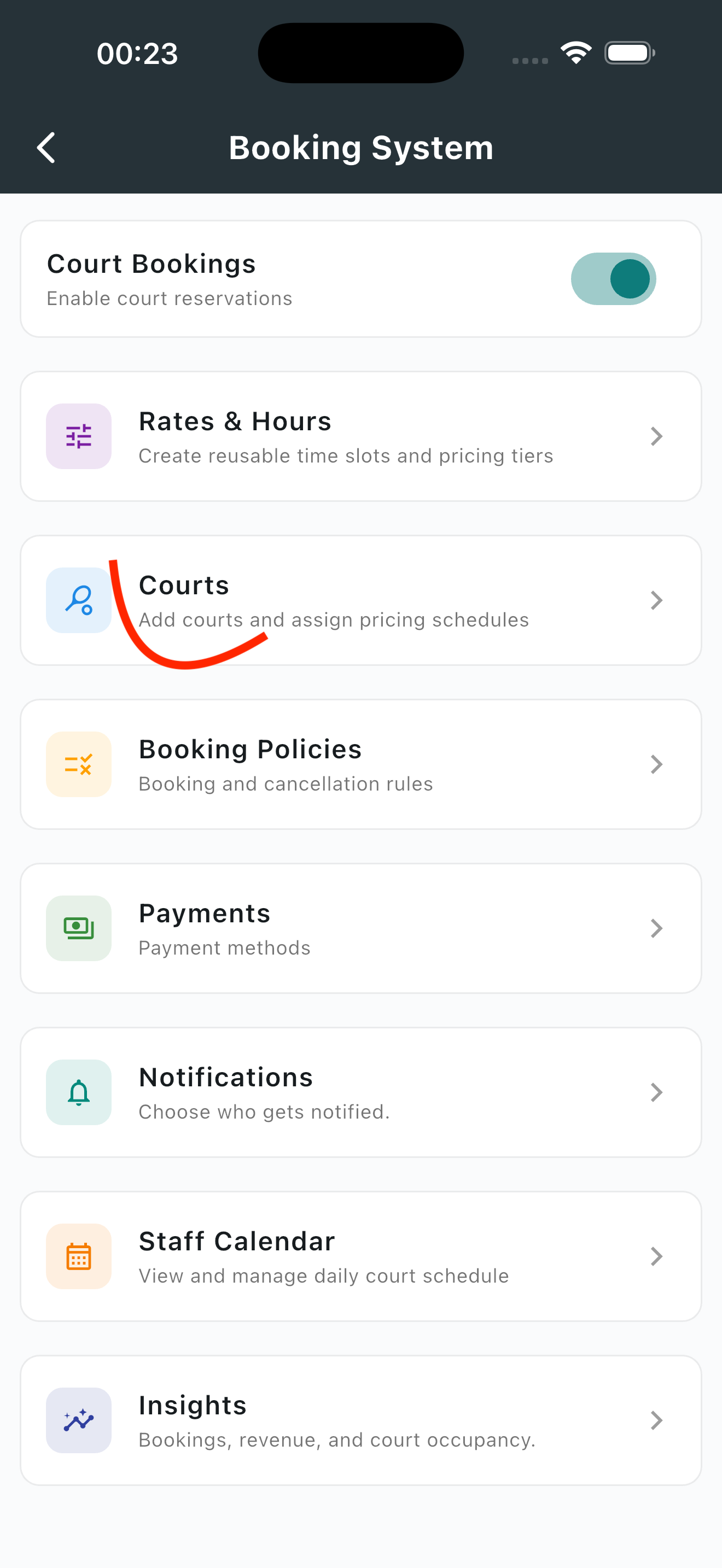
How to get there:
Club settings → Booking System → Courts
Tap Add court for each court at your venue.
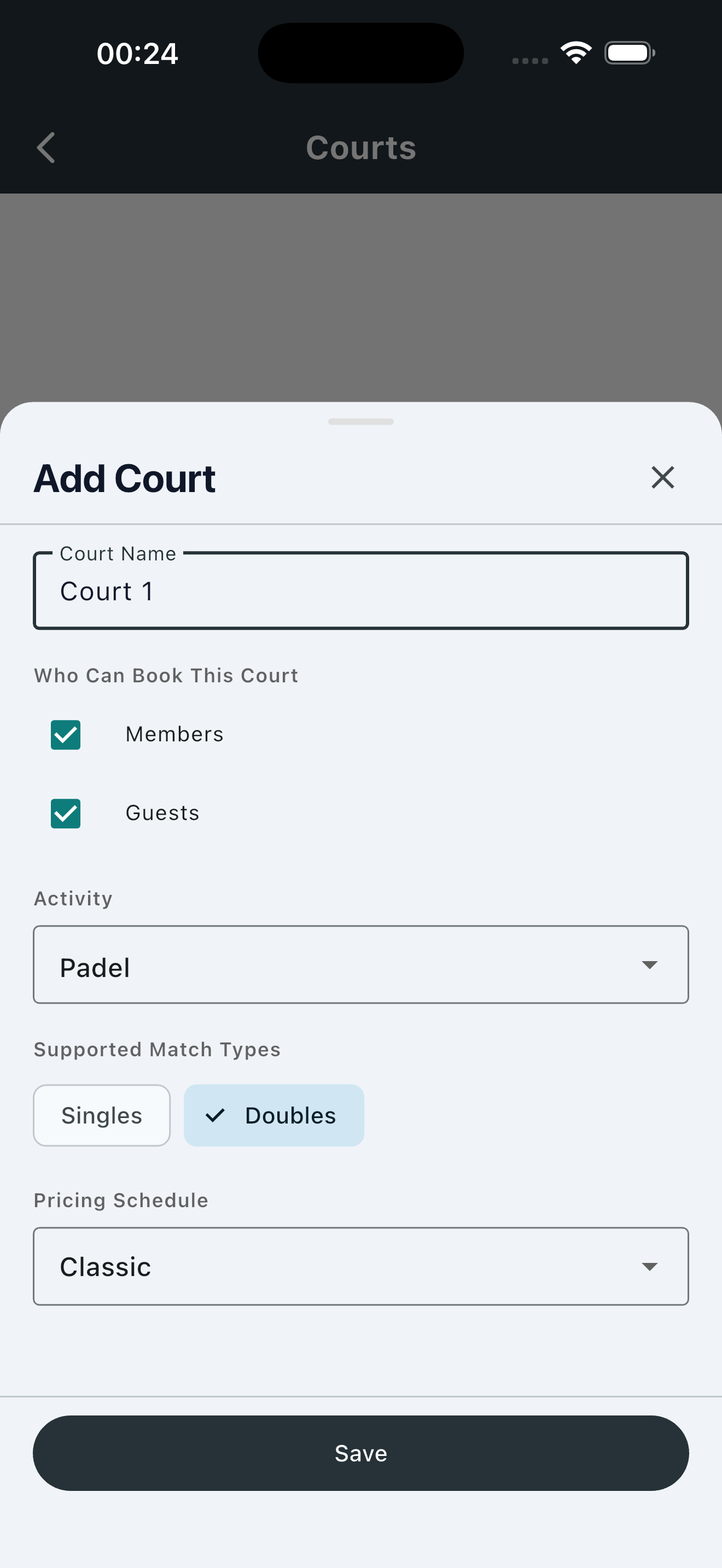
For each court, set:
- Court name (e.g. "Court 1", "Court Tapia", "Central Court")
- Activity (padel, tennis, pickleball…)
- Singles, doubles, or both
- The pricing schedule from Step 1
Do all your courts have the same pricing? Assign the same schedule to every court.
Do some courts have different prices? Repeat Step 1 to create additional pricing schedules, then assign them to the relevant courts.
Tip: You can add custom attributes to your courts — surface material, wall type, lighting, roof, and anything else that matters at your club. Players see these when browsing available slots and can filter their search accordingly.
That's it — you're ready to accept bookings.
Step 3 — Test your first booking
Once your courts are configured, head to the Booking tab — your slots should now be bookable. Before letting your players in, book a test slot yourself:
- Go to the club's Booking page in the app
- Pick a court, date, and time
- Confirm the booking
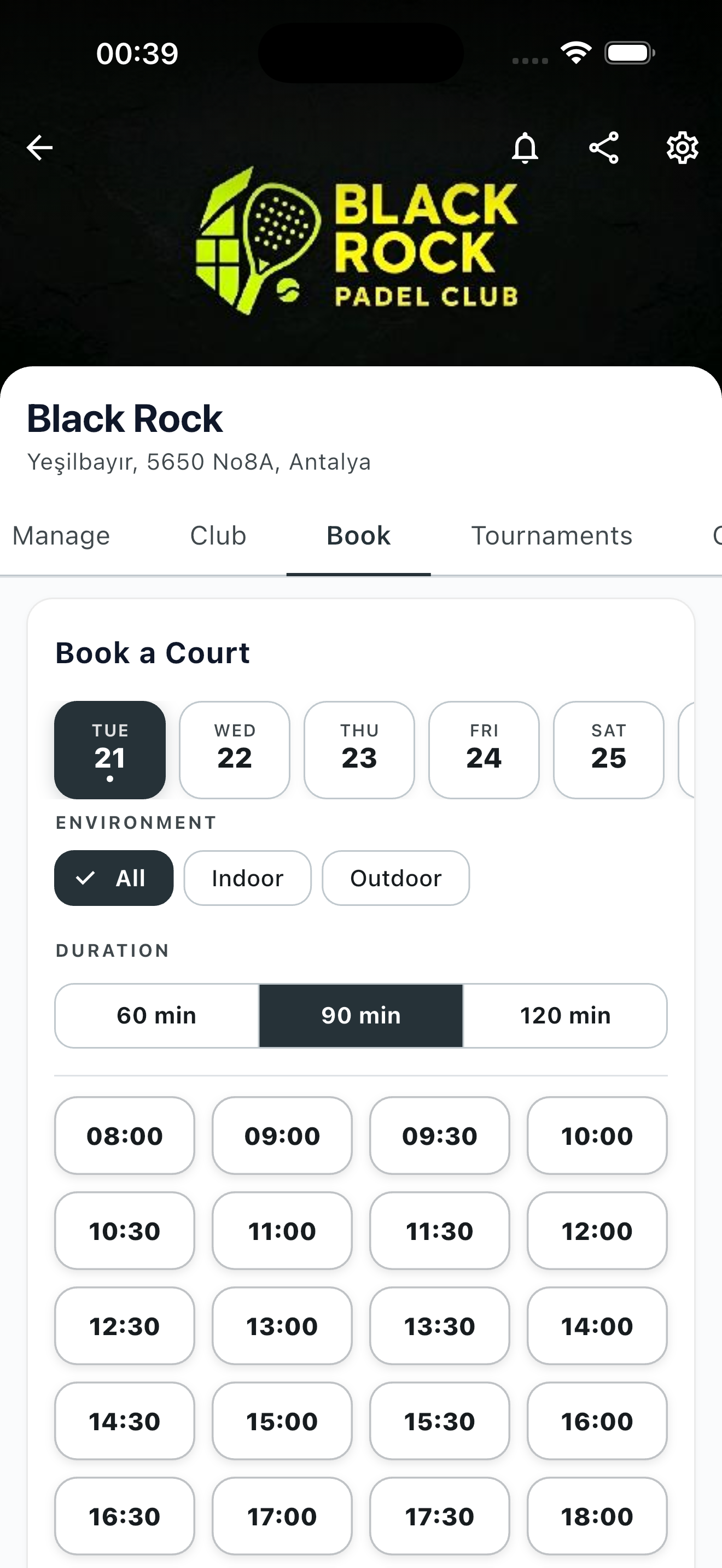
The booking should appear immediately in your admin calendar. If something feels off, jump back into pricing or courts and adjust.
Managing your bookings
As a club admin, you have full visibility over what's happening on your courts. In the Manage tab, you can access your bookings through either a calendar view or a list view.
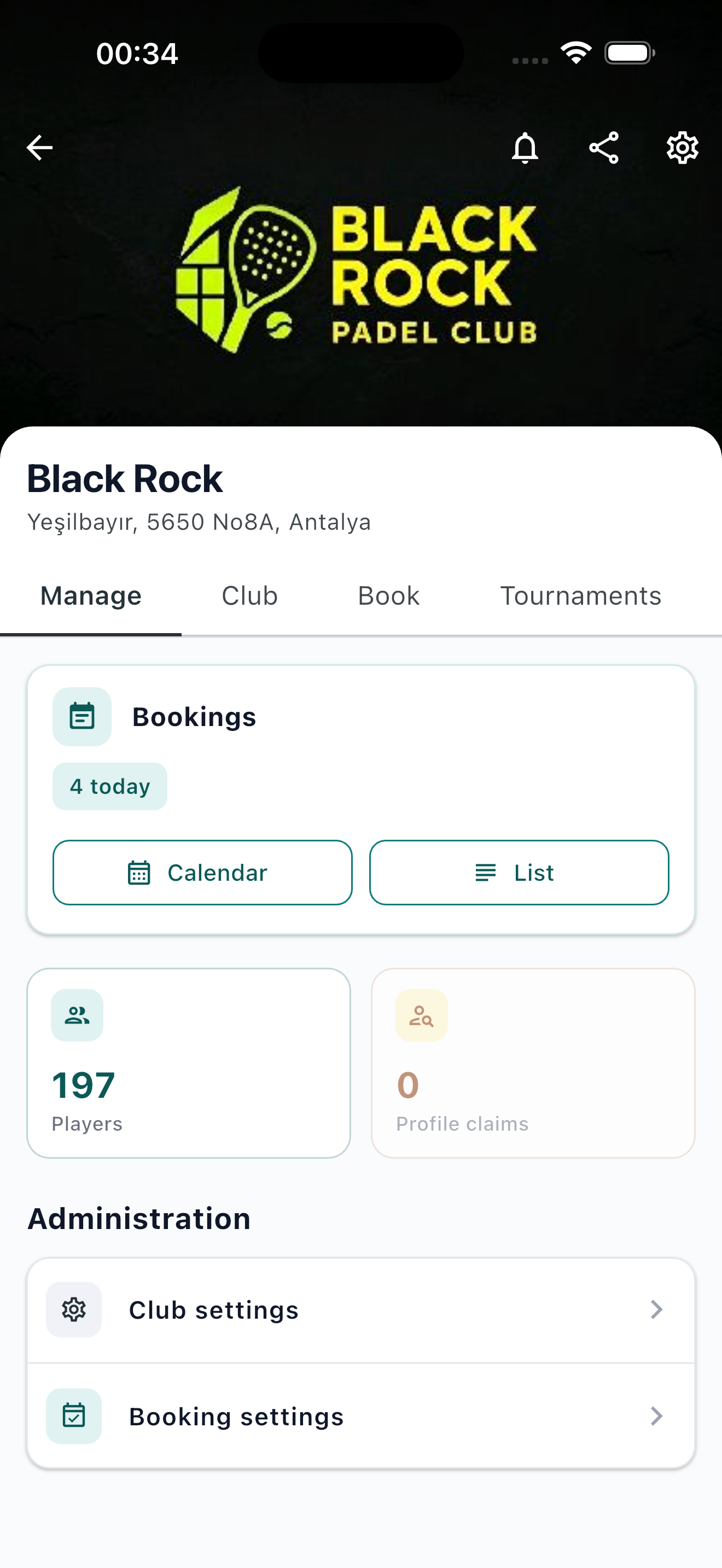
Calendar view — see all bookings across all courts for any day, at a glance.
List view — filter and sort bookings by date, court, or player.
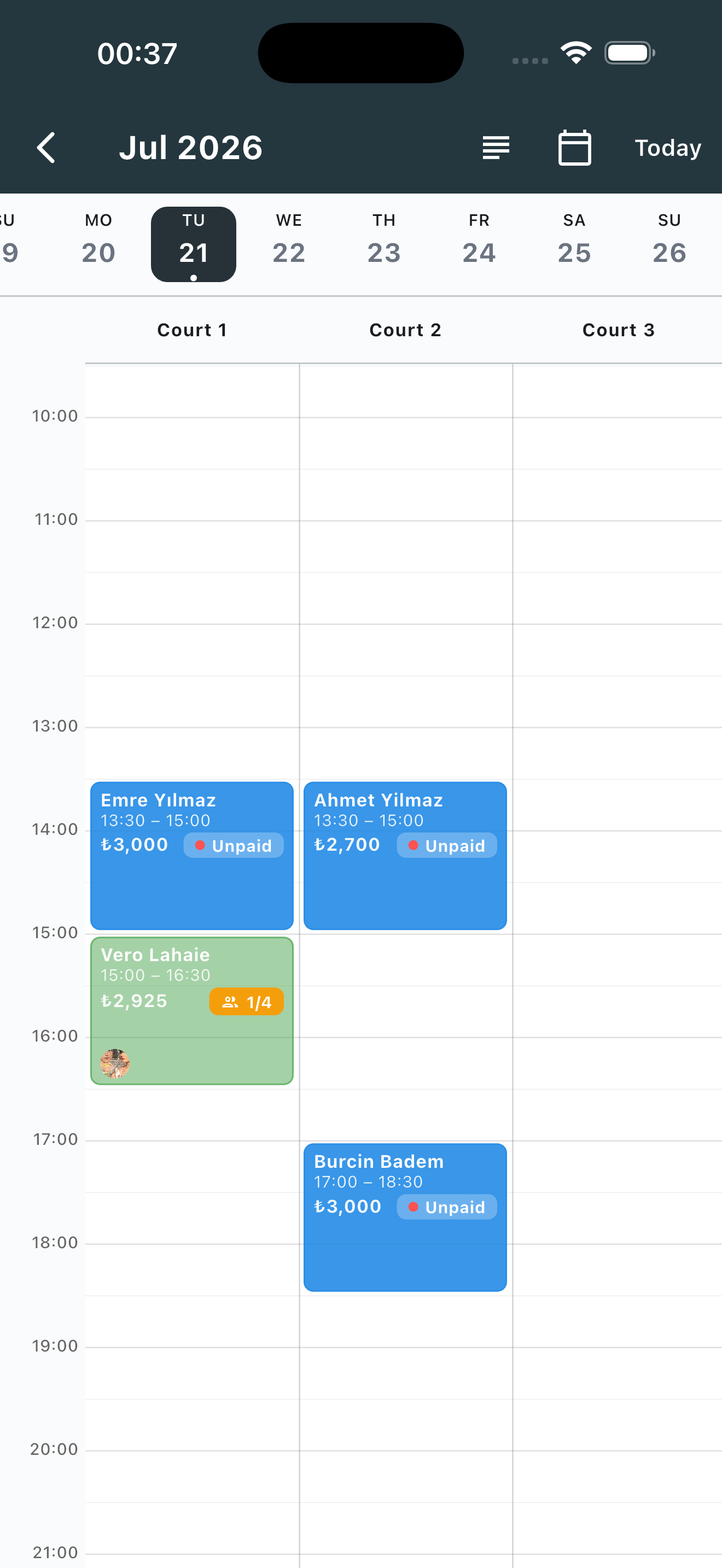
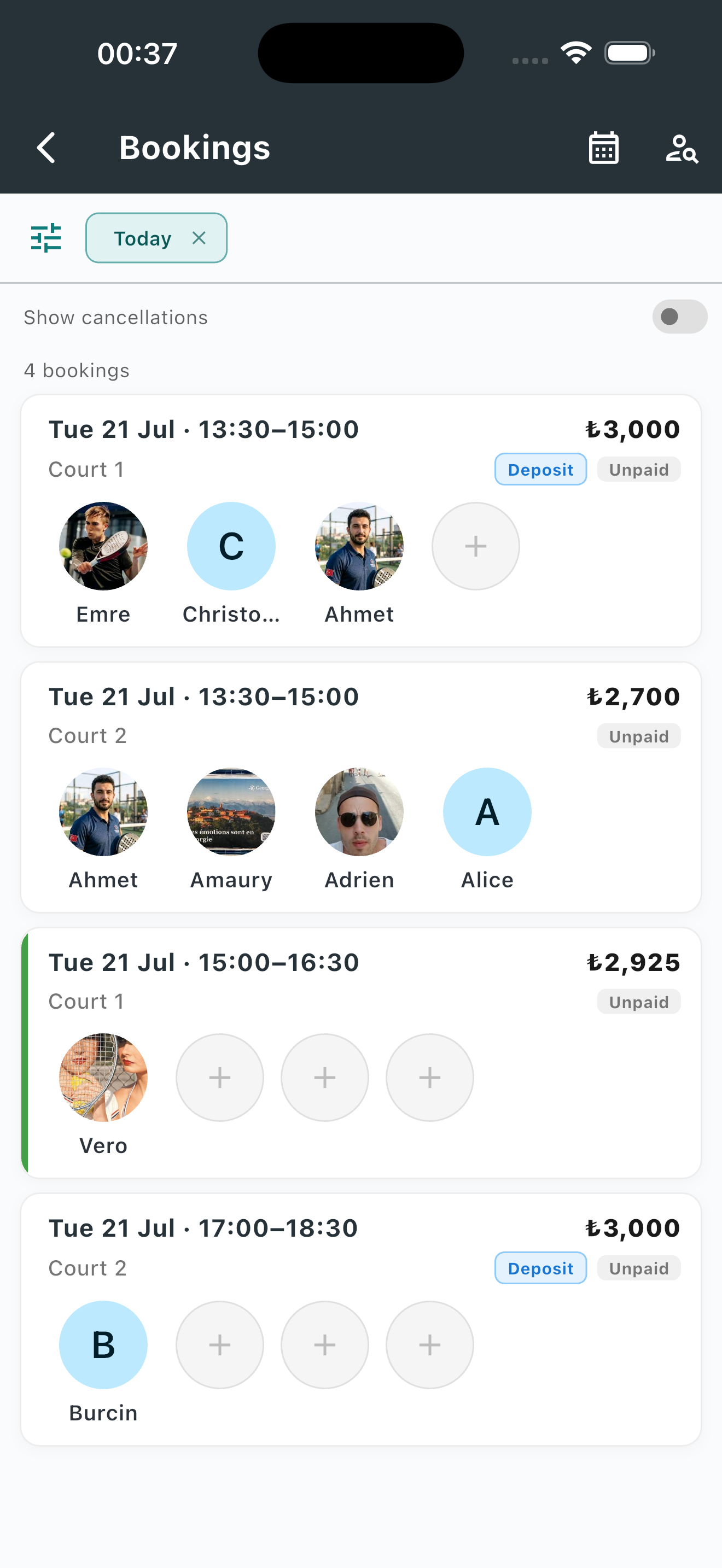
Payment tracking — mark each booking as paid, unpaid, or refunded. Filter to see who still owes.
Booking types your players can create
Private bookings — a player reserves a court for their group. They can invite other players directly from the app.
Open matches — a player reserves a court and opens it up for others to join. Great for filling gaps in the schedule and helping players find matches.
Both work out of the box once your courts are configured.
Going further
Once your basic setup is running smoothly, a few options unlock more power:
Accept payments through the app
Connect a payment provider (Stripe, Iyzico, etc.) and let players pay when they book. Reduces no-shows and eliminates paper receipts. Message us to set this up.
Fine-tune your booking rules
Set your free cancellation window, no-show penalties, member discounts, and auto-cancellation for incomplete open matches — all configurable to match how your club actually operates.
Where to find it: Club settings → Booking System → Booking Policies
Custom web booking page
We can create a dedicated web page for your club, so players can book without downloading the app. Great for guests, walk-ins, and anyone who prefers a browser. Just ask.
Need help?
Contact us on Messenger or WhatsApp — we'll walk through anything with you in 10–15 minutes.
Last updated: July 2026