
Add players
SliceWin adapts to how you run your club or community. You can grow your roster in two ways:
- Invite players to the app — share a link so they join, report results, and follow the leaderboard themselves.
- Create players manually — add them yourself, or let another staff member do it if you have given them permission.
We know it is not always practical to ask everyone to install the app. Manual players still appear in your club, can join tournaments, and can have match results reported for them.
You'll need: A club or community already created on SliceWin.
Invite players to the app
To invite players to your club or community, tap the share button on the profile screen.
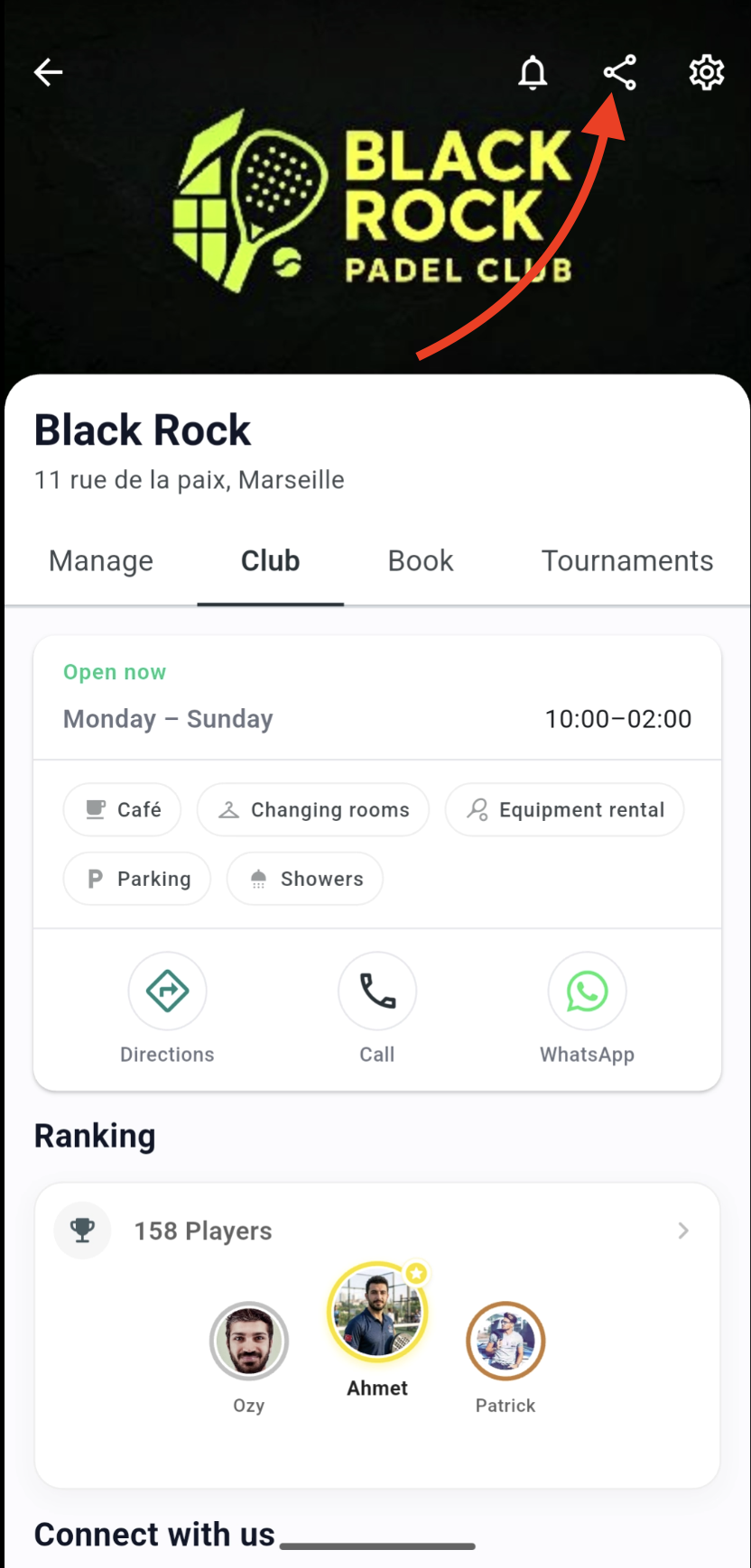
Send the link through WhatsApp, Telegram, email, or any channel you already use. Players who join through the link can self-report results, see their match history, and follow the leaderboard.
You can also invite players from the Manage tab under Administration → Invite players.
Create players manually
Use manual creation when someone will play or compete but does not need the app right away.
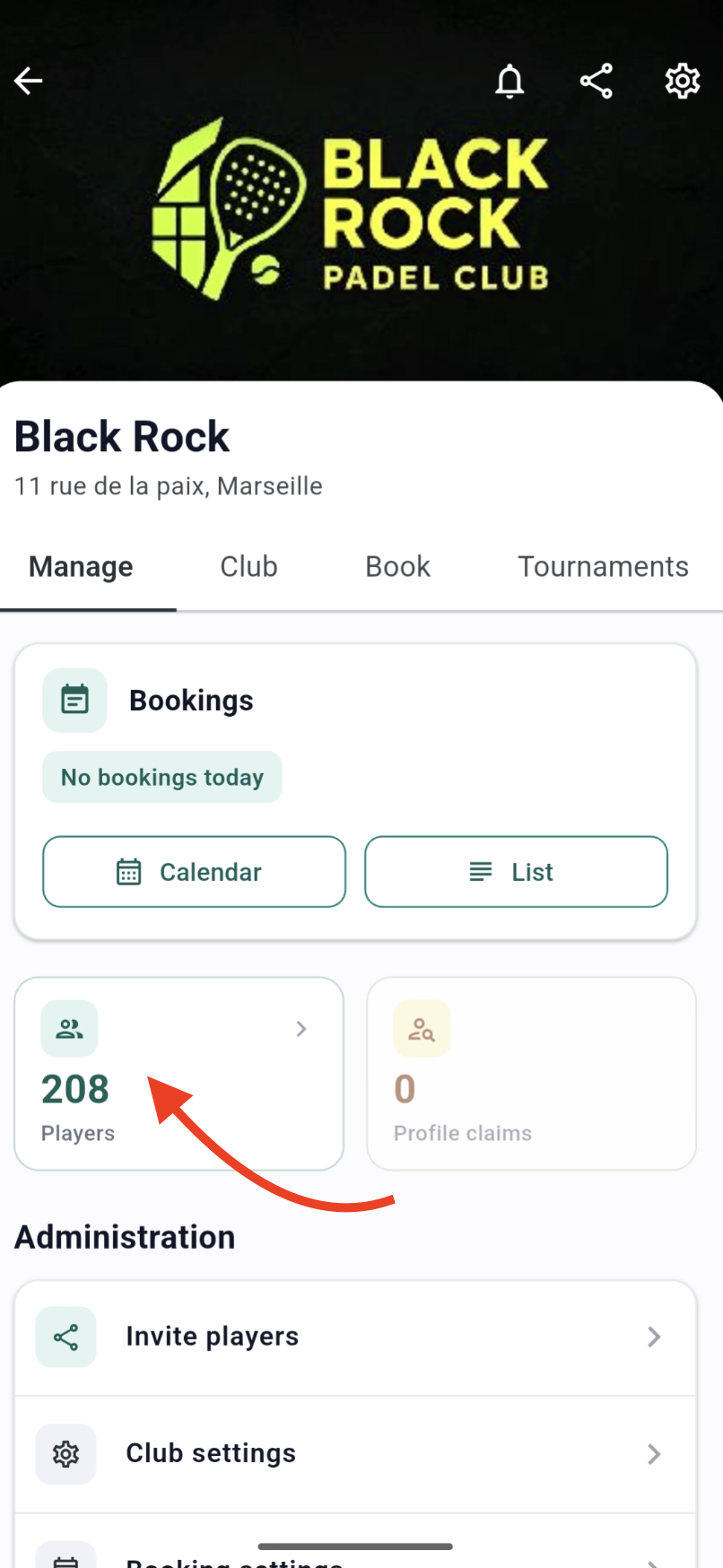
How to get there: Open your club or community → Manage → tap the Players card
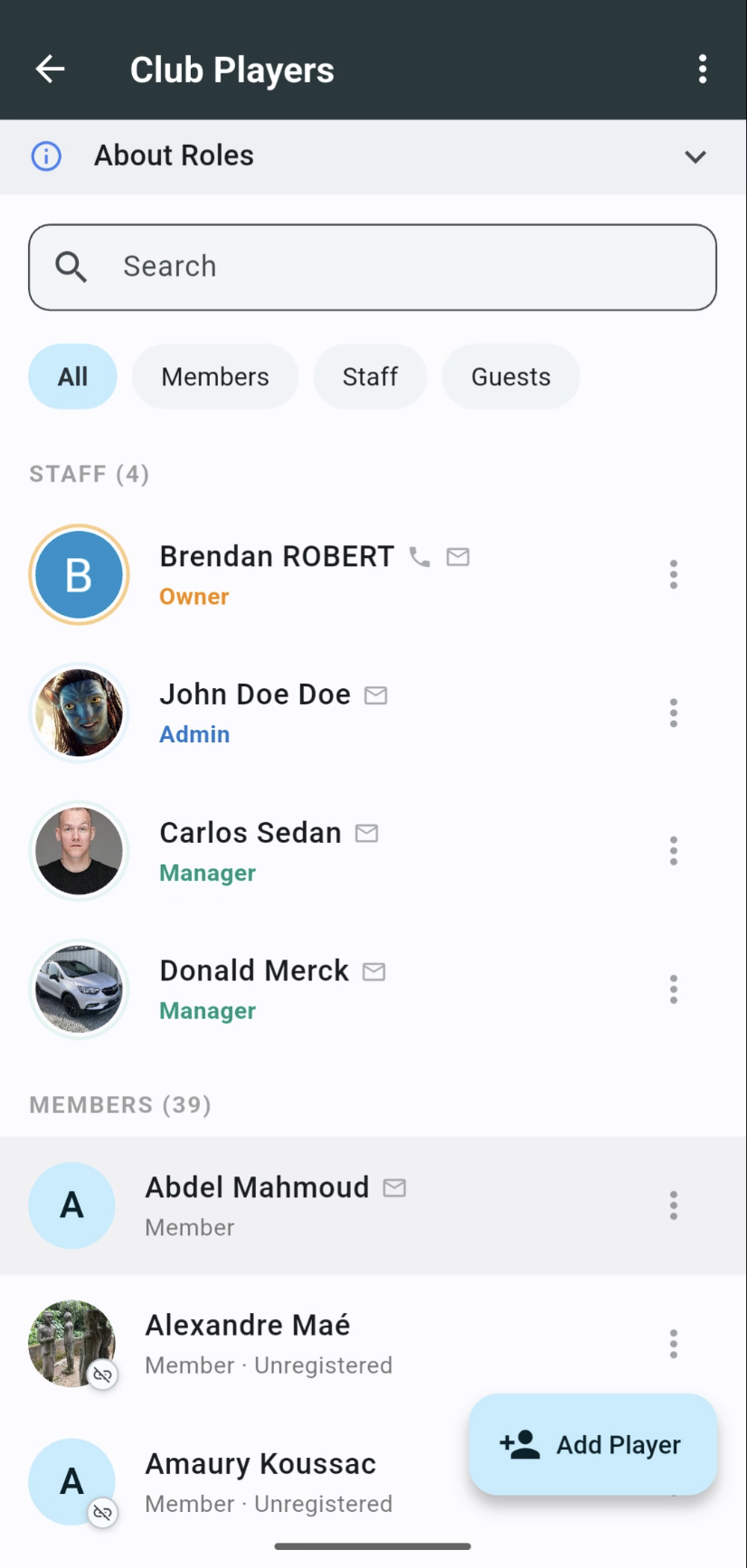
On the players list, tap + Add Player in the bottom-right corner.
Fill in their name and any details you have. The player appears in your club immediately and can be added to tournaments or match results.
Create on the fly
You do not always need to open the players list first. Staff can also create a player while:
- adding participants to a tournament lobby
- reporting a match result
SliceWin creates the profile in the background and adds them to your club.
When a manual player joins the app
If you created a player manually and they install SliceWin later, their profile can be linked to their account. They keep their match history, tournament results, bookings, and ranking.
See Link accounts for the full walkthrough — including staff merge and the profile-claim flow when players join.
Player roles
Every player has a role that controls what they can see and do. You can change roles anytime from the players list.
Manager, Admin, and Owner are sometimes grouped together as staff in the app and in this documentation.
| Role | What they can do |
|---|---|
| Guest | Not counted as a full member. They do not appear in the club ranking, but can register for tournaments and report match results. |
| Member | A regular member of the club or community. They appear in the ranking and can play, report results, and join tournaments. |
| Manager | Everything a member can do, plus create tournaments and manage court bookings. |
| Admin | Everything a manager can do, plus change club or community settings. |
| Owner | The person who created the club or community. Full permissions, including staff management. There is only one owner. |
Note: Unregistered players — those you created manually — cannot be given staff roles. They must install the app and link their account first.
Need help?
Questions about inviting players, manual profiles, or roles? Contact us — we'll walk you through it.
Last updated: August 2026