
Create a tournament
This guide walks you through creating a tournament in SliceWin — from the Tournaments tab to the lobby, then tapping Start.
Time needed: ~10 minutes
You'll need: A club or community already created on SliceWin.
Before you start
A tournament always lives inside a club or community. Create that first, then open it in the app.
Staff (Owner, Admin, or Manager) can create tournaments.
Open the Tournaments tab
How to get there: Open the SliceWin app → Select your club → Tournaments
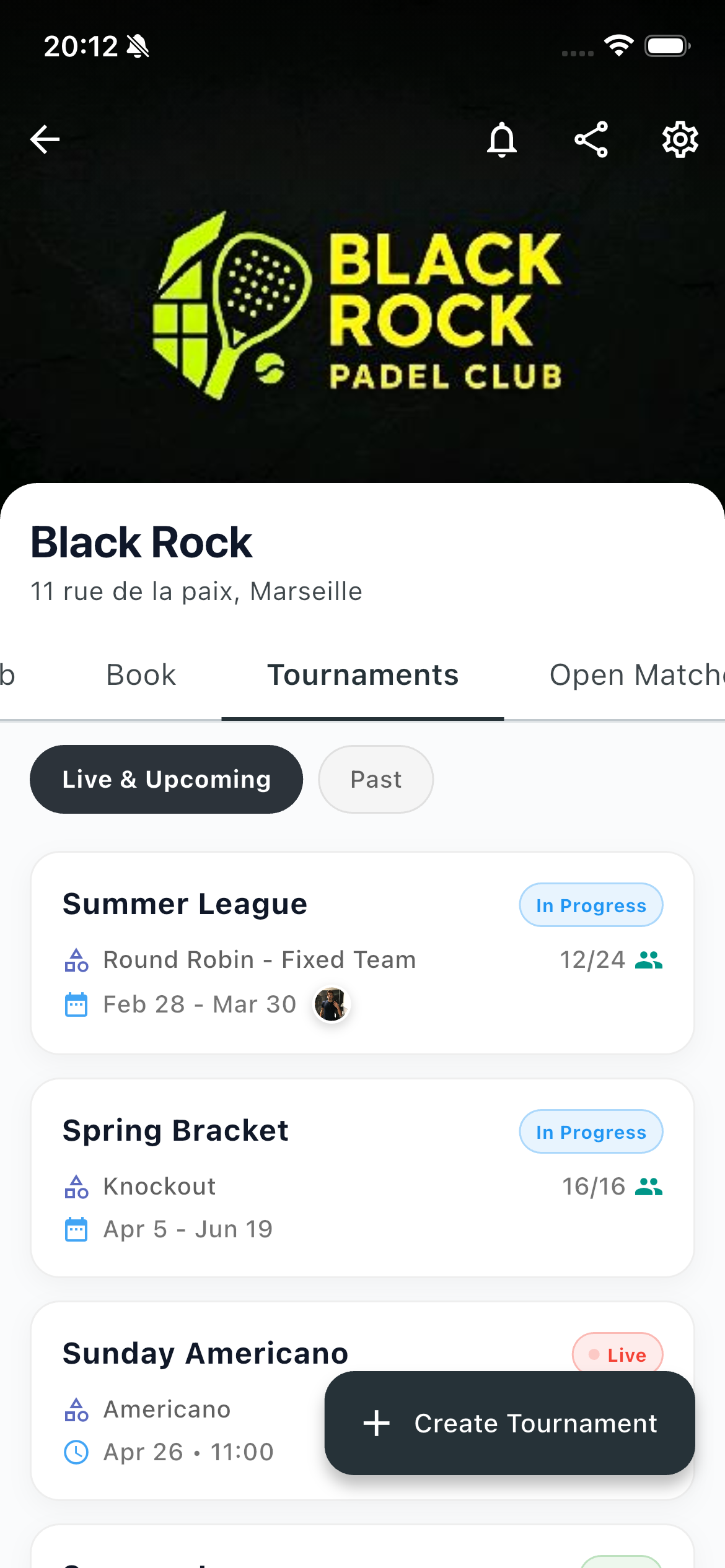
Tap + Create Tournament.
The list shows Live & Upcoming events, plus Past ones when you need them. You do not need an empty list — create the next tournament whenever you want.
Choose a format
On the Create Tournament screen, give the event a name and pick a format. The format decides how matches are generated and how the lobby is laid out.
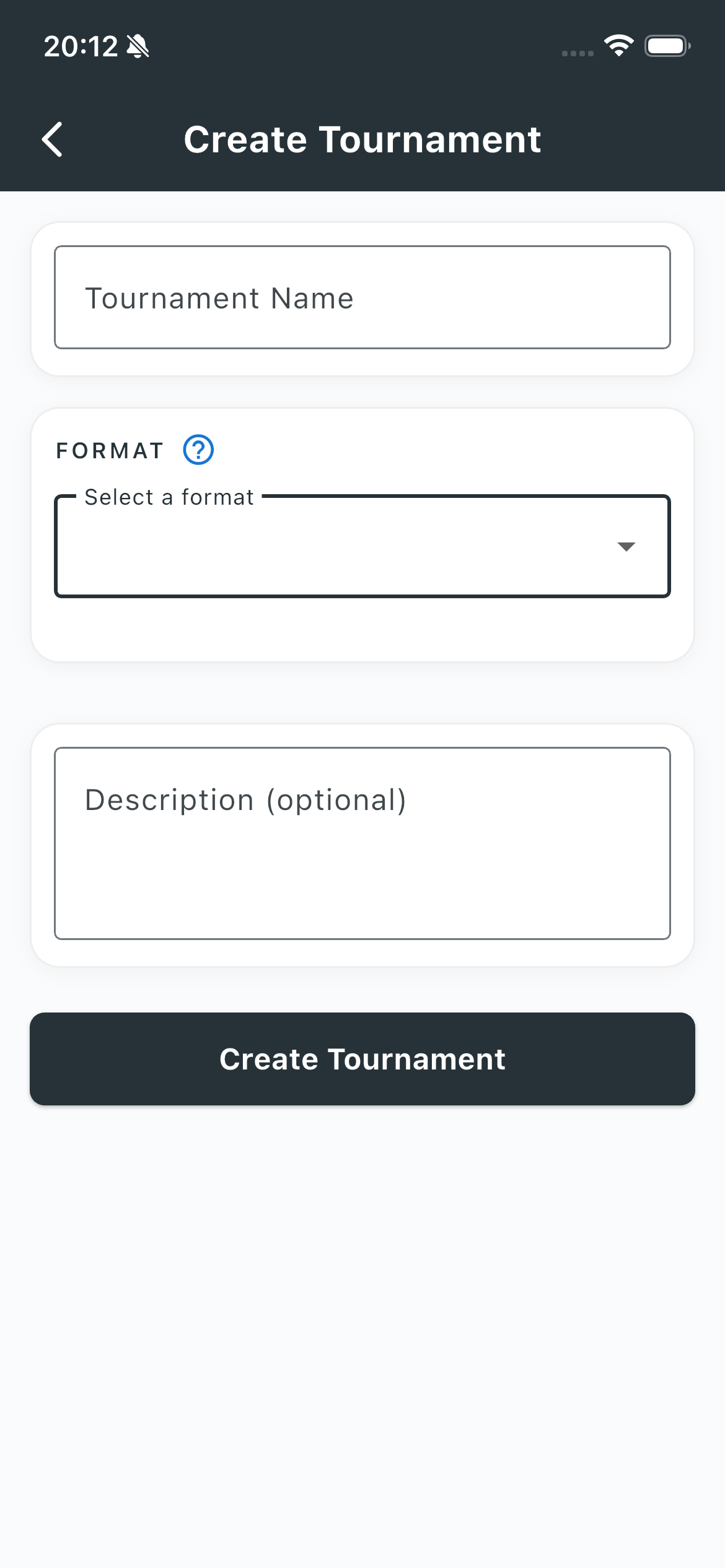
Not sure which format to use? See Tournament formats.
A description is optional — useful for prizes, expected level, or what to bring.
If the club has more than one activity, pick the activity first (padel, tennis, pickleball…). Formats and singles/doubles options follow that activity.
Settings that apply to every format
These fields show up no matter which format you pick.
Tournament name — what players see in the list and the lobby.
Competitive or Friendly
- Competitive — matches update the club Elo ranking
- Friendly — matches do not affect the club ranking
Date and time — when the tournament starts. Multi-day events (league or flexible schedule) also ask for an end date.
Max players or teams — the capacity shown in the lobby (for example 12/24).
Registration — free or paid. If it is paid, you set the amount and how you collect it.
Registration approval — auto-accept joiners, or review them before they are in.
Description — optional notes for players.
Tip: To cut no-shows, SliceWin can collect payment in the app. See Collect a registration fee.
Format-specific settings
After you pick a format, extra options appear. Only the ones for that format are shown.
Singles or doubles
Shown when the club supports both, for most formats. Team Tournament in Flexible mode uses a separate “supported match formats” control instead (singles, doubles, or both).
Rotating or fixed partners
Open Play / Americano and Swiss / Mexicano, doubles only.
- Rotating — partners change each round
- Fixed — pairs stay together
Matches per opponent
Round Robin, Group Round Robin, and Team Tournament in Round Robin mode. Play each opponent once or twice.
Number of groups
Group Round Robin only. Players or teams are split into that many groups and play only inside their group.
Matchmaking rules
Swiss / Mexicano only.
- Rank — pair similar standings for balanced games
- Avoid repeats — prefer new partners and opponents over a strict rank pairing
Ranking method
Open Play / Americano and Swiss / Mexicano.
- Matches won — standings by wins
- Total points — standings by points scored
Flexible (Open Play) also lets you rank by win percentage, Elo difference, or a tournament-only Elo.
Schedule
Round Robin, Group Round Robin, Knockout, Flexible (Open Play), and Team Tournament.
- Session or Event — one sitting, with a start time
- League — matches spread over a date range; players self-schedule
- Flexible schedule — Knockout only; a longer window instead of a single session
Americano and Mexicano sessions do not show this toggle — they run as a single session.
Number of courts
Only for formats that generate rounds on a set of courts, and only when the tournament is a single-day session (not a league or multi-day schedule).
Typical cases: Americano, Swiss / Mexicano, Round Robin, Group Round Robin, and Team Tournament in Round Robin mode — when played as one session.
Not asked for Knockout, Flexible (Open Play or Team Tournament), or any league / multi-day event. SliceWin uses the court count to pace how many matches run at once.
Knockout structure
Knockout only.
- Optional group stage (round robin), with group count and qualifiers per group
- Optional direct qualifiers who skip the groups
- Optional placement matches after elimination
- Bracket size adapts to how many teams you have when you start
Team Tournament extras
Team Tournament only.
- Flexible or Round Robin mode
- Supported match formats (Flexible mode) — singles, doubles, or both
- Let players choose their team — or leave assignment to staff
Who can create matches
Flexible (Open Play) and Team Tournament in Flexible mode. When this is off, only staff can add matches.
Solo registration
Fixed-team formats only. Lets a player join alone; you pair them later in the lobby.
Add players in the lobby
Once the tournament is created, you land in the lobby. This is where you build the roster before anything starts.
Players can download the app, or you can create them manually — no one is forced to download SliceWin.
- Invite to the app — share your tournament invite link using the share button. Players who join can self-report results, see their match history, add photos, and follow the leaderboard.
- Create manually — add unregistered players yourself. They appear in the club and can play without installing anything.
If someone you created manually installs the app later, their profile can be merged so they keep their history and ranking.
The lobby adapts to the format. Rotating formats show a player list. Fixed doubles and group events let you build teams and groups.
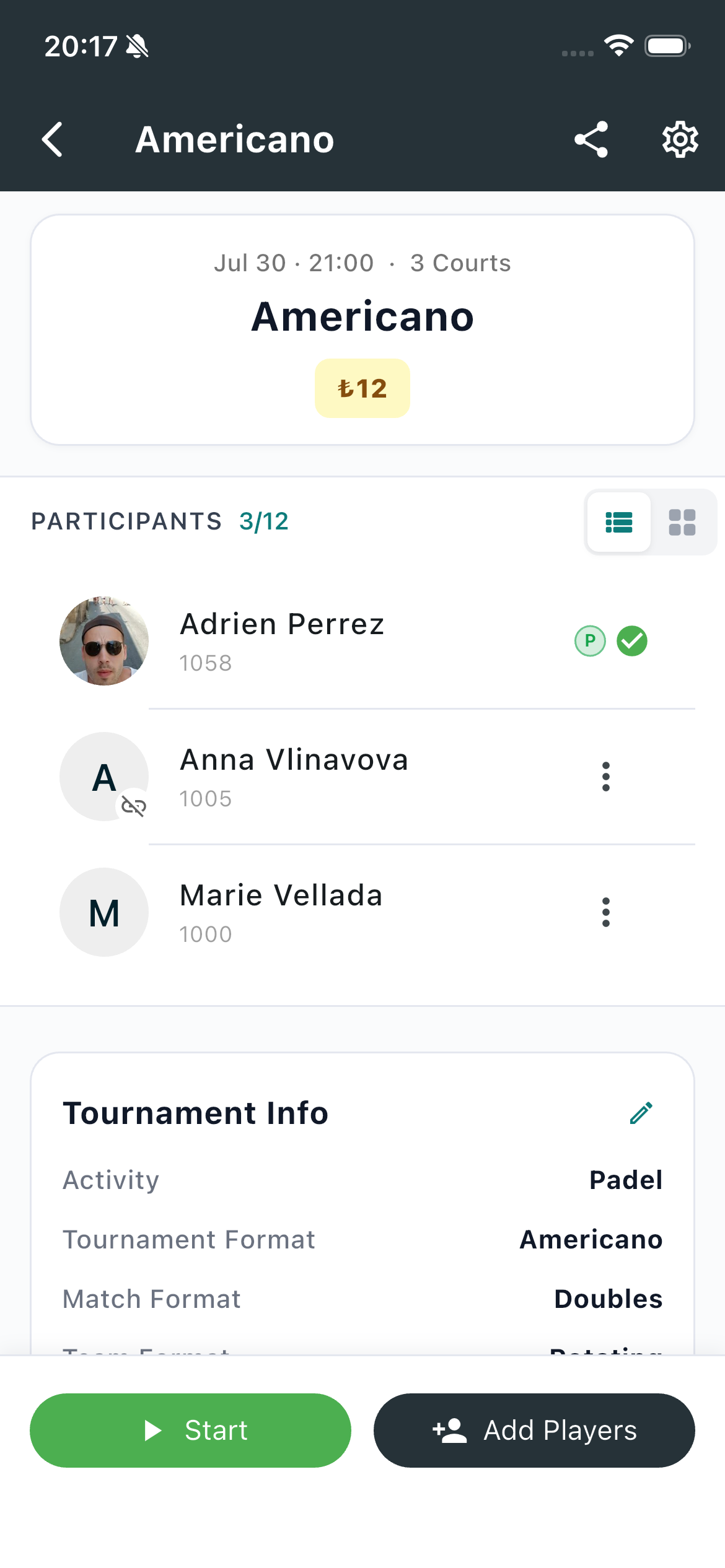
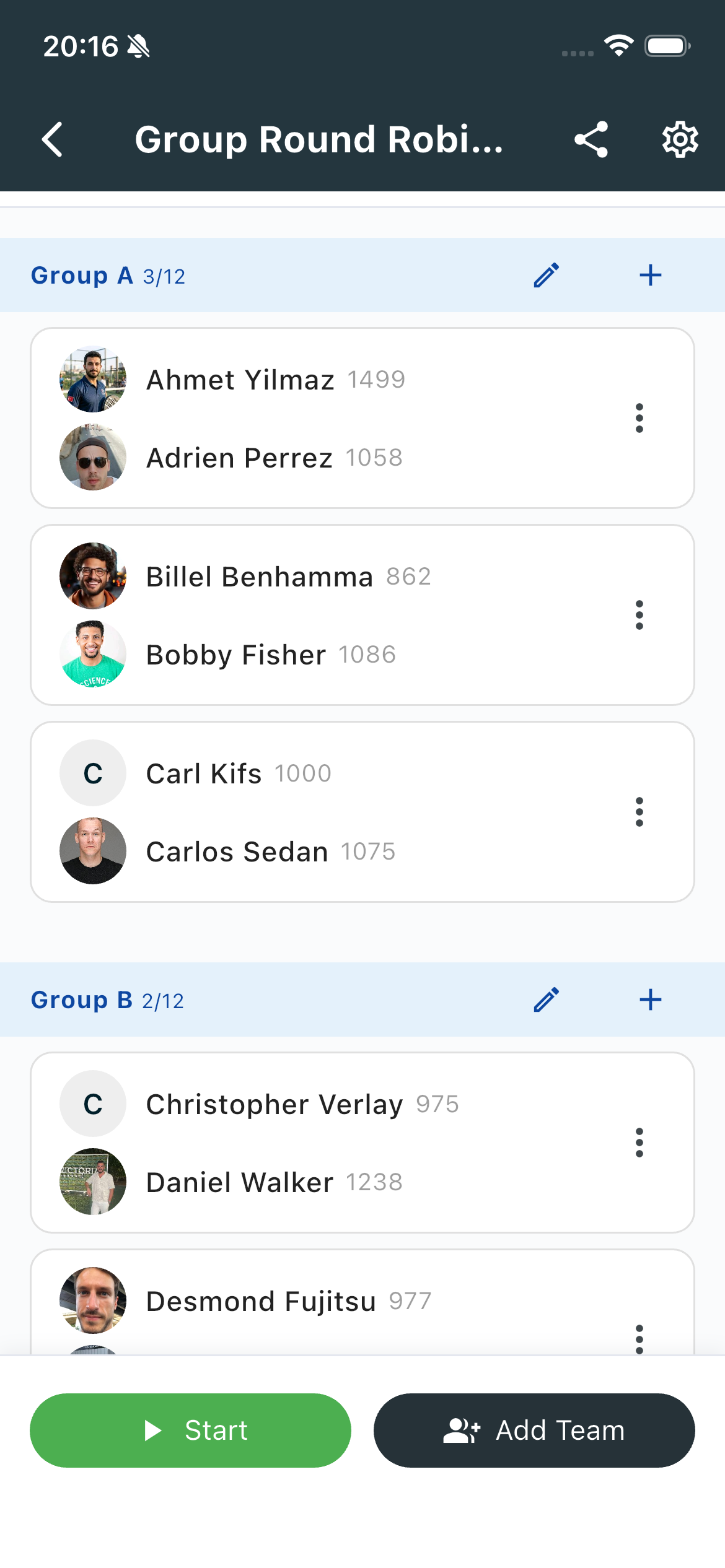
Each player’s Elo rating is shown next to their name, so you can seed groups or check the mix at a glance.
The lobby stays flexible until you start. Add or remove players and teams as needed. Track check-in and payment by tapping a player or a team.
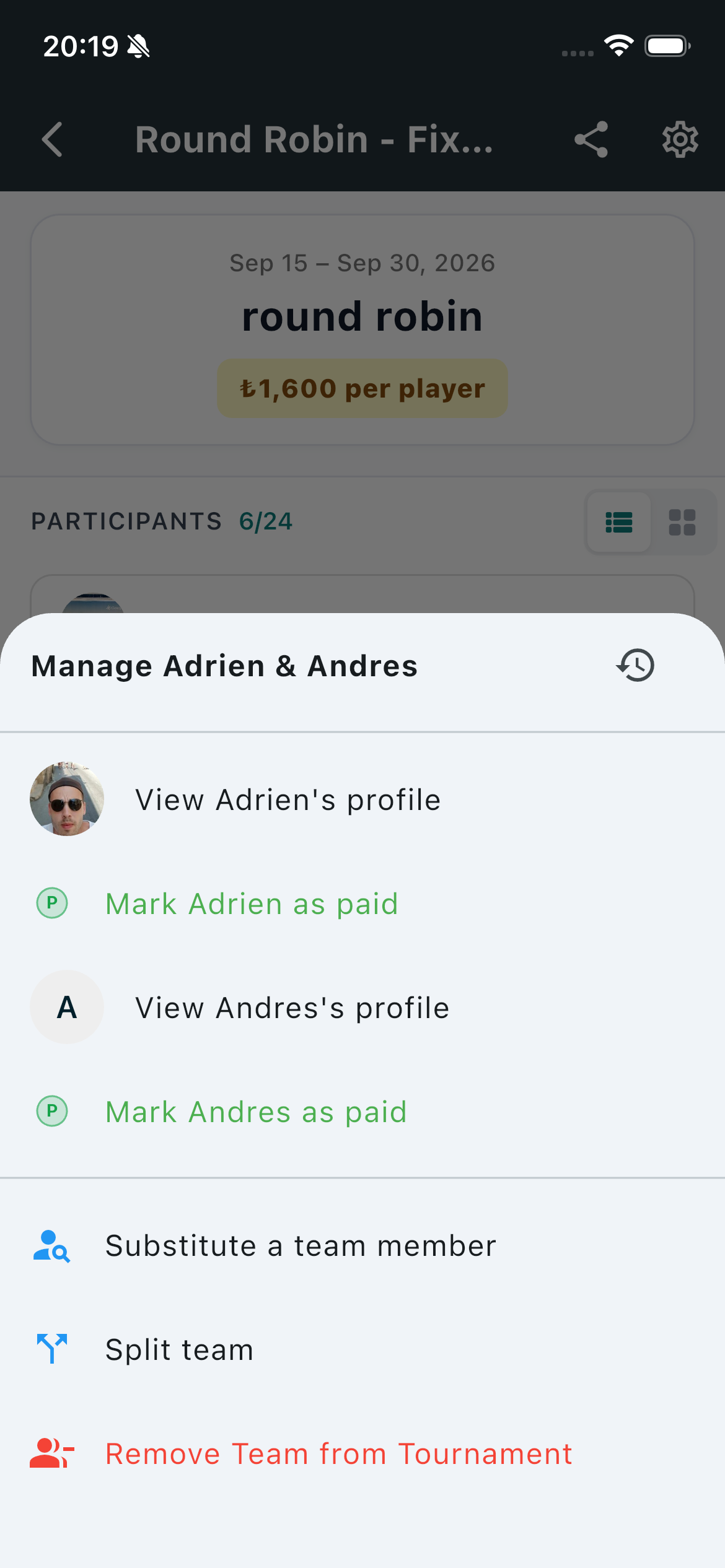
From that menu you can mark someone as paid, substitute a teammate, split a pair, or remove them from the tournament.
Start the tournament
When the roster looks right, tap Start. SliceWin generates the first matches from the format you chose.
You can still adjust courts and late joiners after the tournament is live — staff can add players while it is in progress.
Need help?
Questions about creating a tournament? Contact us — we'll walk through the setup with you.
Last updated: August 2026